Prerequisites for Connecting via Virtual SQL Server API
Before you connect via Virtual SQL Server API, you must first do the following:- Connect a data source to your Connect AI account. See Sources for more information.
- Generate a Personal Access Token (PAT) on the Settings page. Copy this down, as it acts as your password during authentication.
Connect to Connect AI via Virtual SQL Server API
To establish a connection from Azure Data Factory to the Connect AI Virtual SQL Server API, follow these steps.If you have not yet created a Data Factory:
- Click Create and enter your configuration information in each tab.
- When you are finished entering information, click Review + create and then Create to save the Data Factory.
Enter the connection settings.
- Name—enter a name of your choice.
- Server name—enter the Virtual SQL Server endpoint and port separated by a comma: tds.cdata.com,14333
- Database name—enter the Connection Name of the Connect AI data source you want to connect to (for example, Salesforce1).
- User Name—enter your Connect AI username. This is displayed in the top-right corner of the Connect AI interface. For example, test@cdata.com.
- Password—select Password (not Azure Key Vault) and enter the PAT you generated on the Settings page.
Prerequisites for Connecting via OData Endpoint
Before you connect to Connect AI via the OData endpoint, you must first do the following:- Connect a data source to your Connect AI account. See Sources for more information.
- Create a Workspace. Later, you will use the OData Service URL on that page (https://cloud.cdata.com/api/odata/{workspace\_name}) with the relevant workspace name to establish the connection.
- Generate a Personal Access Token (PAT) on the Settings page. Copy this down, as it acts as your password during authentication.
Connect to Connect AI via OData Endpoint
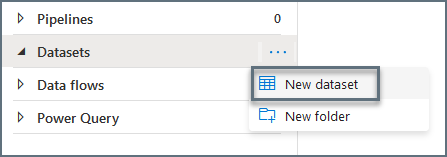
To connect to Connect AI using the OData protocol, follow these steps.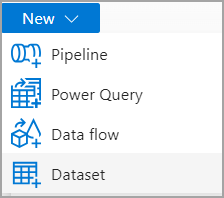
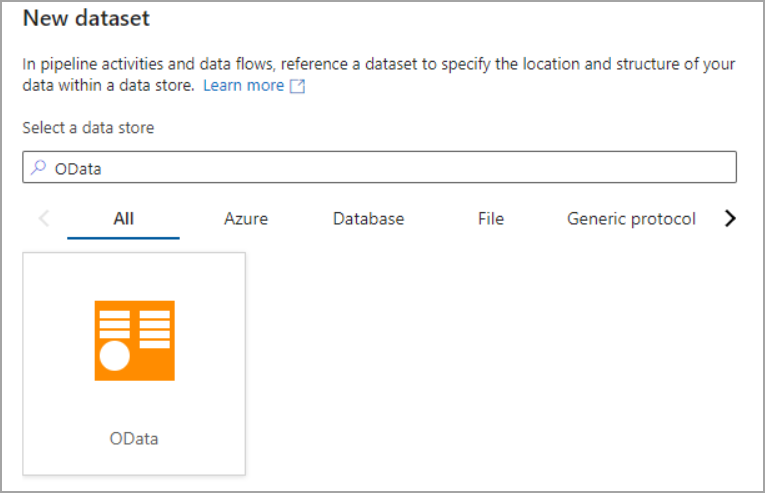
In the Set properties dialog, name your OData Resource and for Linked service, click New. A New linked service dialog appears.
Enter the following settings for OData: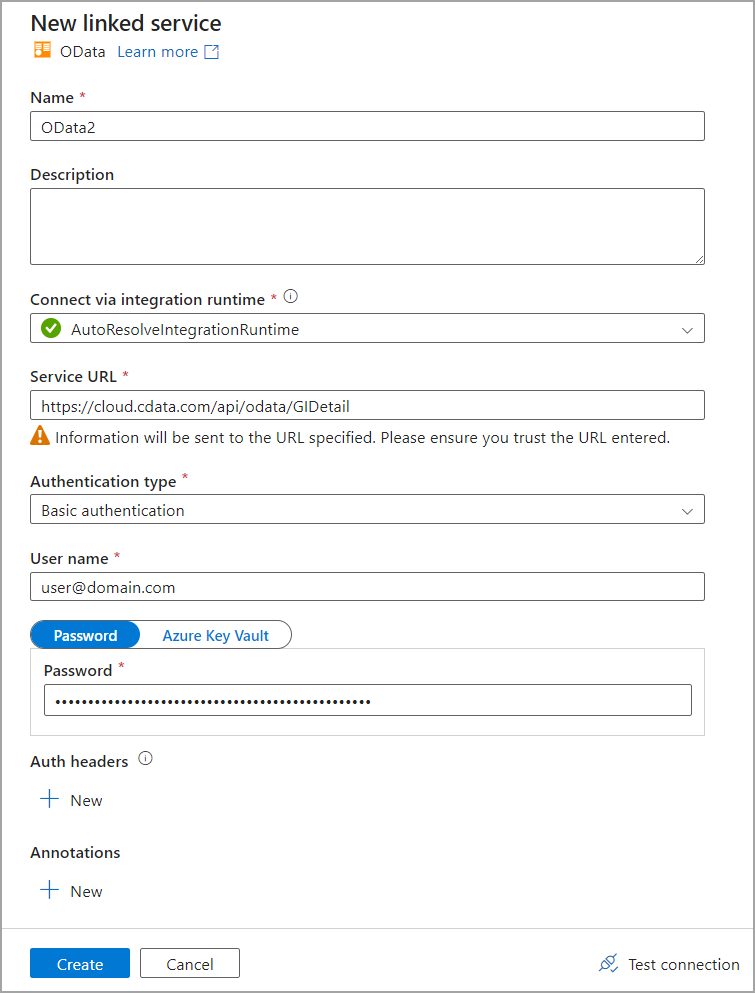
- Name—enter a name of your choice.
- Service URL—enter https://cloud.cdata.com/api/odata/{workspace\_name}.
- Authentication type—select Basic Authentication.
- User name—enter your Connect AI username. This is displayed in the top-right corner of the Connect AI interface. For example, test@cdata.com.
- Password—select Password (not Azure Key Vault) and enter the PAT you generated on the Settings page.