Prerequisites
Before you connect, you must first do the following:- Connect a data source to your Connect AI account. See Sources for more information.
- Generate a Personal Access Token (PAT) on the Settings page. Copy this down, as it acts as your password during authentication.
Connect from Mac
Download and install the Actual ODBC Driver for SQL Server.
Configure a DSN using the Actual ODBC driver by setting the following:
- URL: https://tds.cdata.com/
- Port: Change the port from 1433 to 14333
- Username: your Connect AI email
- Password: the PAT you created earlier
Connect from Windows
To establish a connection from FileMaker Pro to Connect AI, follow these steps.Download and install the Connect AI ODBC driver.
- Open the Integrations page of Connect AI.
- Search for ODBC.
- Click Download and select your operating system.
- When the download is complete, run the setup file.
- When the installation is complete, the ConfigureODBC file can be found in the installation directory.
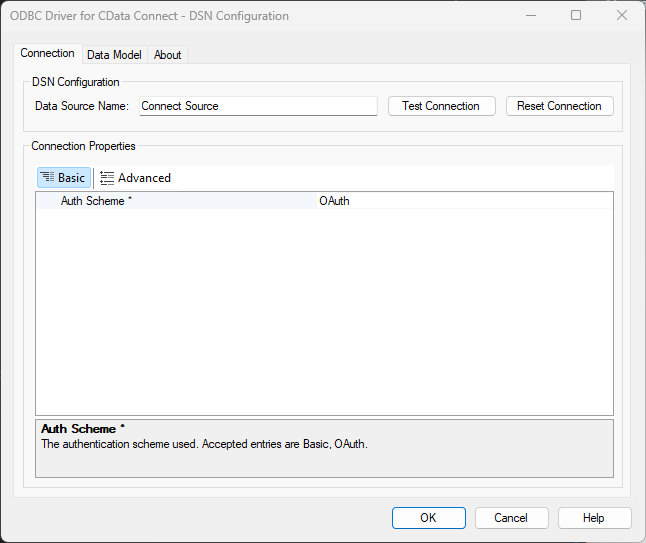
In the Advanced tab, in Miscellaneous > Default Catalog, enter the name of the connection set up in the prerequisites.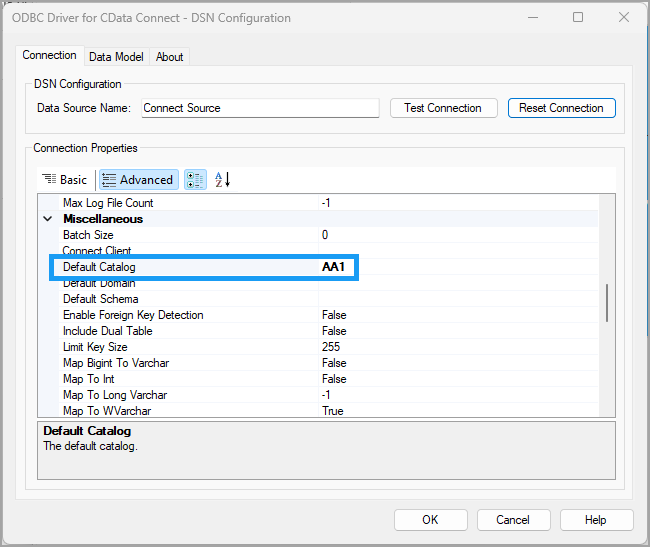
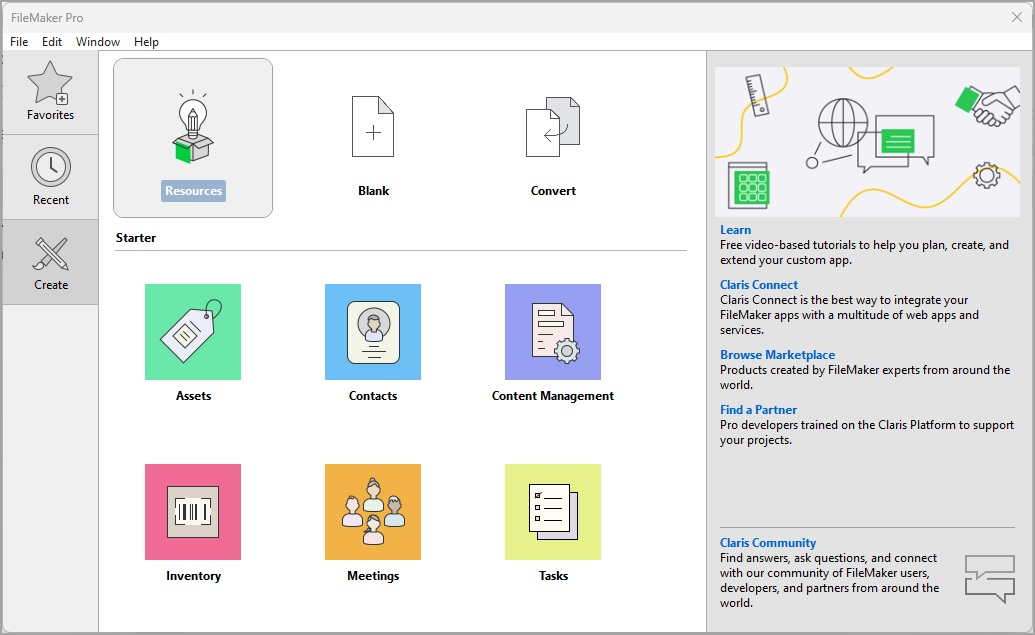
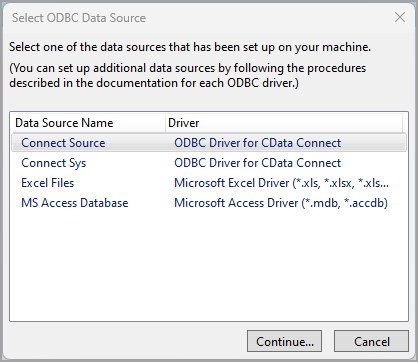
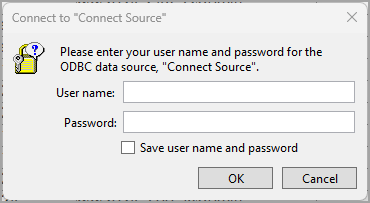
Enter your user credentials in the dialog. The User name is your User Id in Connect AI, and the Password is the PAT obtained in the prerequisites.
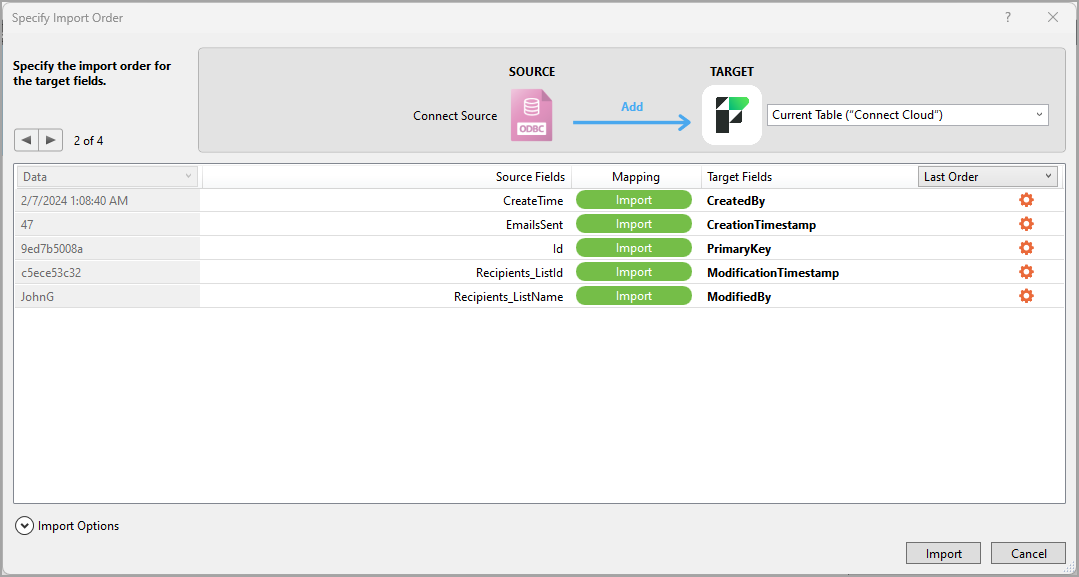
A Specify Import Order dialog appears, where you can customize how and into which table you want to import the Connect AI data into FileMaker Pro.