Prerequisites
Before you can configure and use Power BI Desktop with Connect AI, you must first connect a data source to your Connect AI account. See Sources for more information.Step 1: Connect to Connect AI
In Power BI Desktop, click Get Data to open the Get Data window. In the drop-down list, click More.
Click Sign in on the prompt that appears. Depending on your setup, this button may be labelled Sign in as different user.
Step 2: Import Data
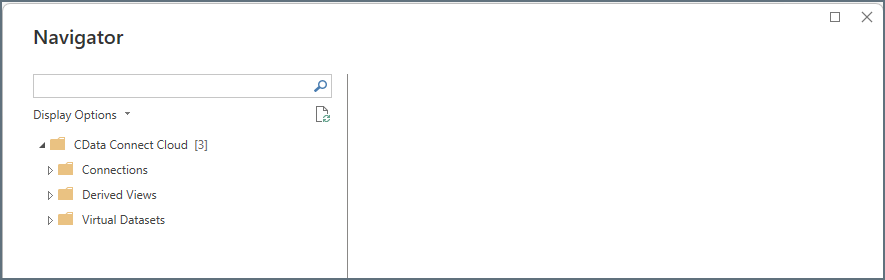
After you connect to Connect AI, follow these steps to import data to Power BI Desktop:In the Navigator dialog, expand the Connections, Derived Views, or Workspaces folder to locate the data to load.
The data is organized in the Navigator as follows: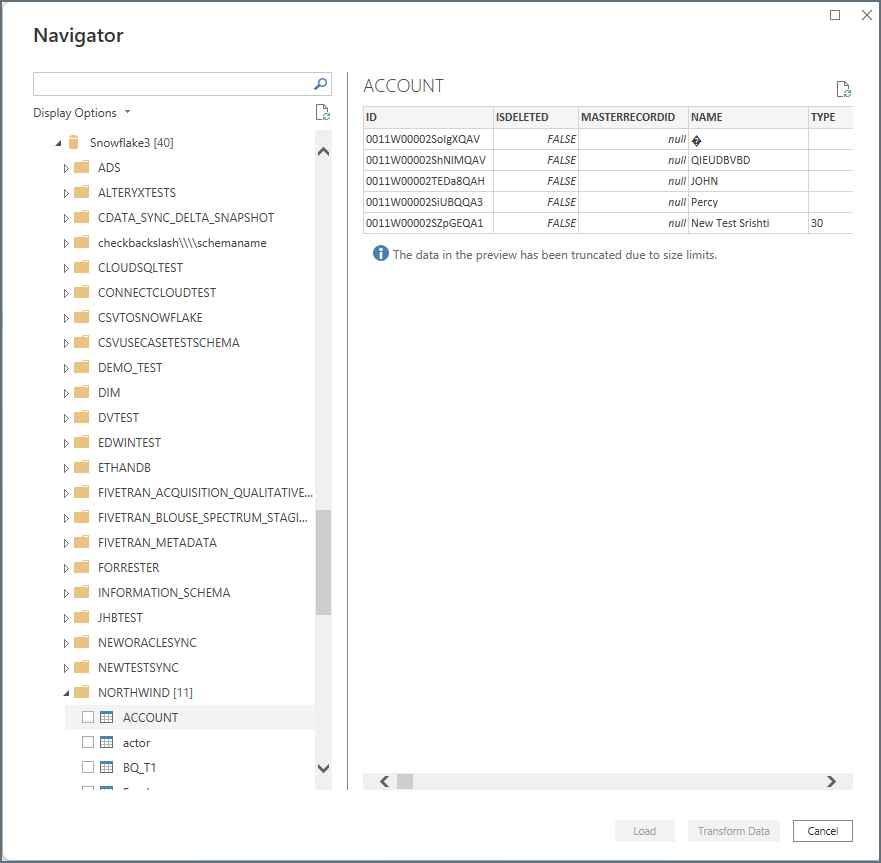
- Connections > Schemas > Table/View/Stored Procedure
- Derived Views > Derived View
- Workspaces > Assets > Table/View/Stored Procedure For example, to load a specific table within a connection, expand Connections, and then expand the connection name. Expand the appropriate schema and then select the table(s) to load, as shown below.
Check the boxes next to the any data that you want to work with. You can view a preview of the data if you wish.
Click Load or Transform Data.
- Load instructs the connector to execute the underlying query to Connect AI.
- Transform Data launches the Query Editor and displays a representative view of the table. To run a custom query through this interface, see Running a Custom Query.