

Prerequisites for Connecting via OpenAPI
Before you connect via OpenAPI, you must first do the following:- In Connect AI:
- Connect a data source to your Connect AI account. See Sources for more information.
- Add a workspace to Workspaces.
- Add assets to your workspace.
- Generate a Personal Access Token (PAT) on the Settings page. Copy this down, as it acts as your password during authentication.
- In Retool:
- Go to Settings > API and click Create new to generate an access token. See the Retool documentation for more information.
Connect to Connect AI via OpenAPI
To establish a connection from Retool to Connect AI via OpenAPI, follow these steps.In Workspaces in Connect AI, select a workspace and copy the OpenAPI URL for the workspace. Keep the default options. See OpenAPI for more information.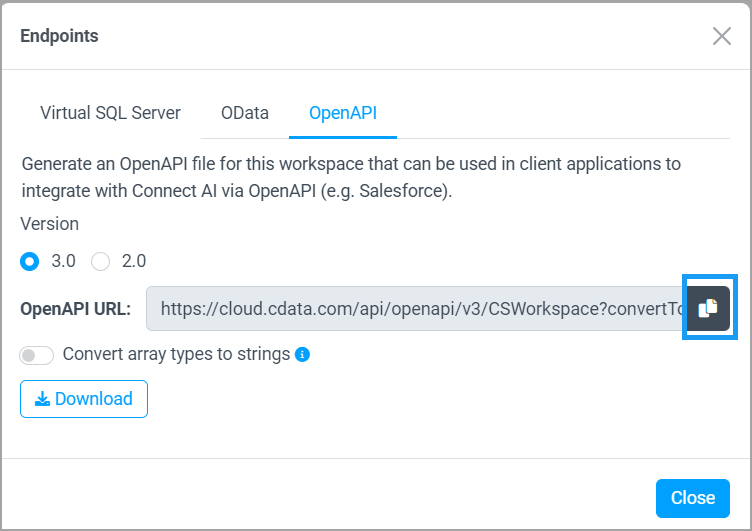
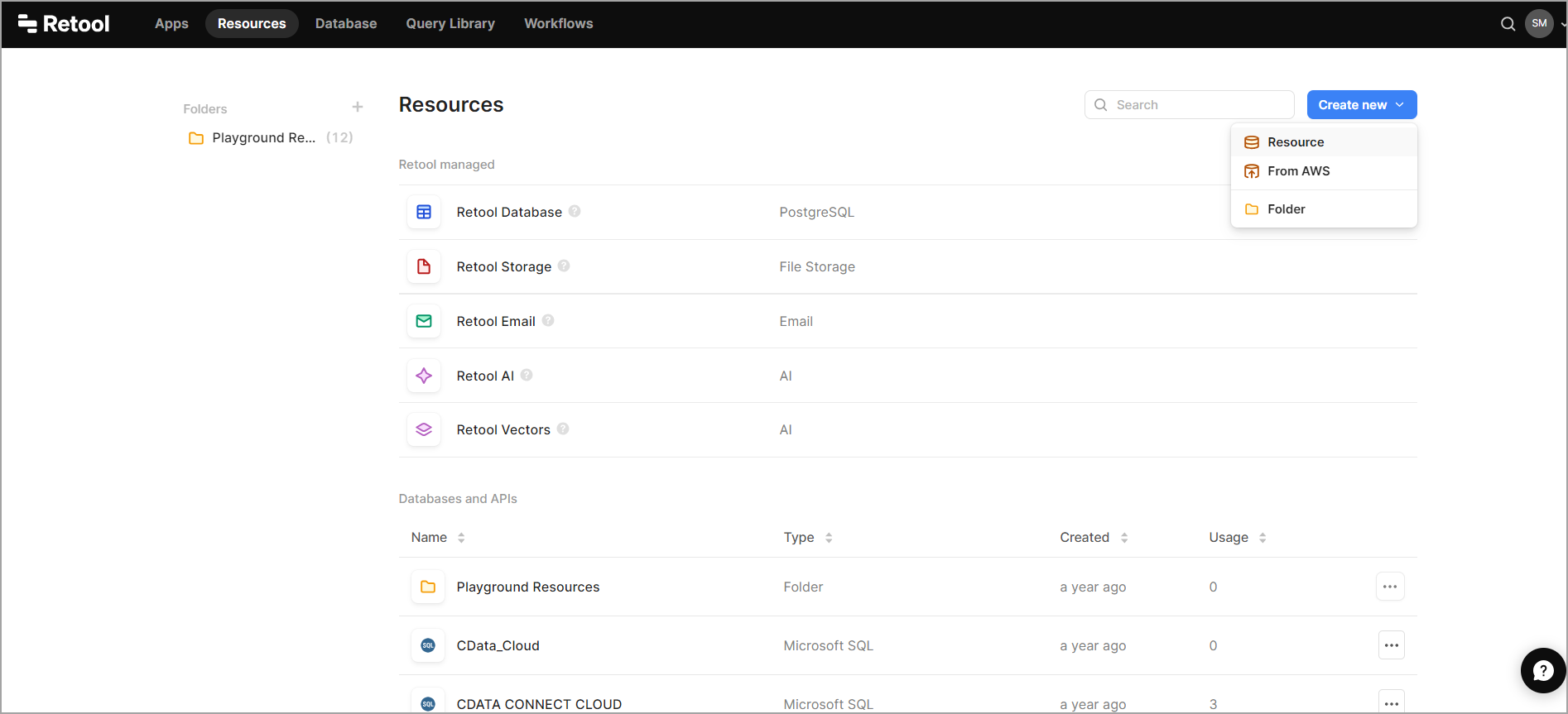
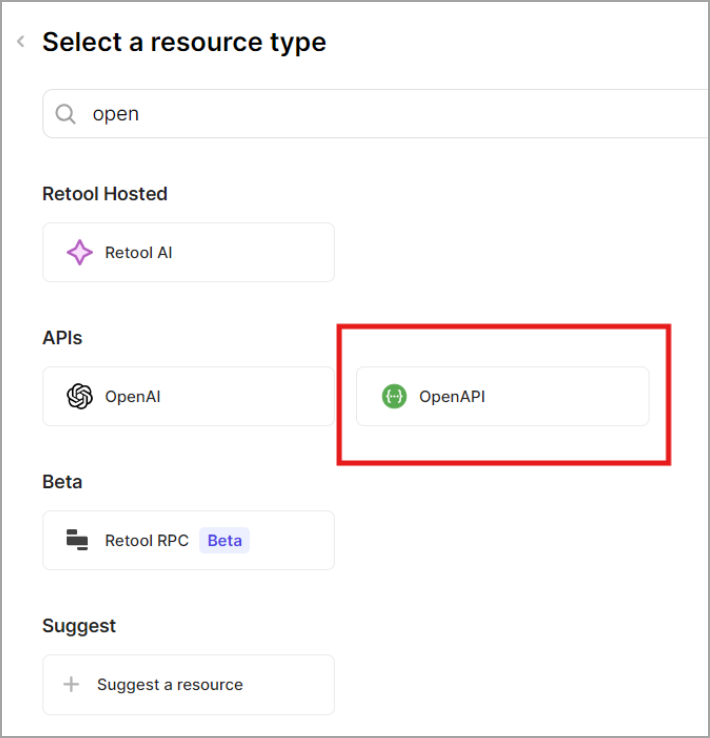
Enter the following information to configure the OpenAPI connector: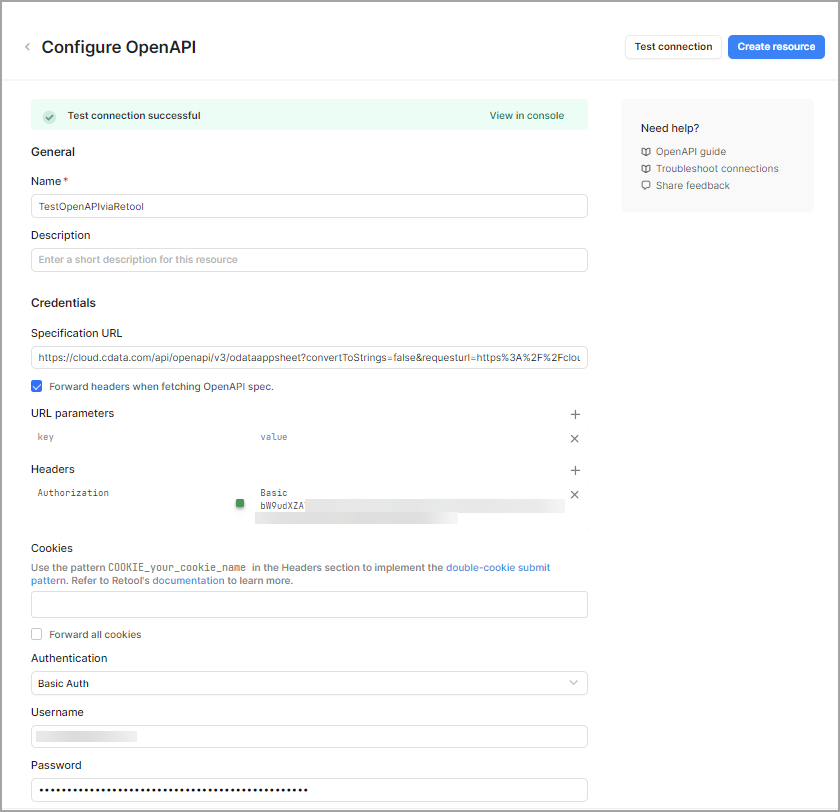
- Name—the name to use to identify the connector.
- Specification URL—the OpenAPI URL you copied in Connect AI. Paste the URL here.
- Forward headers when fetching OpenAPI spec—must be selected.
- Headers—Authorization is Basic. Then, Retool requires that you Base64 encode your Connect AI username and PAT using the input format username:PAT. The PAT is the token you created in the prerequisites. You can use a tool such as the one here. Click Encode and copy the Base64 encoded result into this field. For example, for
test@cdata.com:12345, the Base64 encoded value is dGVzdEBjZGF0YS5jb206MTIzNDU=. - Username—Connect AI のユーザー名を入力します。ユーザー名は、Connect AI の画面の右上に表示されています。例:
test@cdata.co.jp - Password—Settings ページで生成したPAT を入力します。
Prerequisites for Connecting via Virtual SQL Server API
Before you connect, you must first do the following:- Connect a data source to your Connect AI account. See Sources for more information.
- Generate a Personal Access Token (PAT) on the Settings page. Copy this down, as it acts as your password during authentication.
Connect to Connect AI via Virtual SQL Server API
To establish a connection from Retool to the Connect AI Virtual SQL Server API, follow these steps.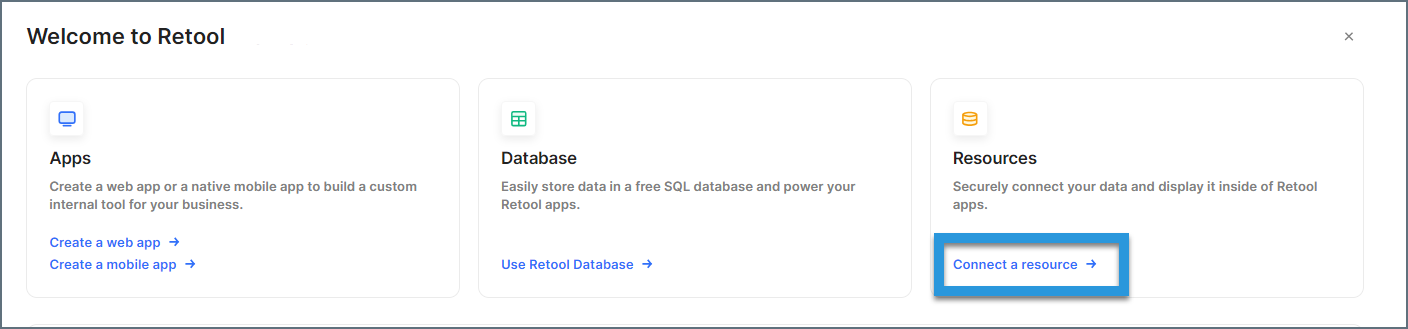
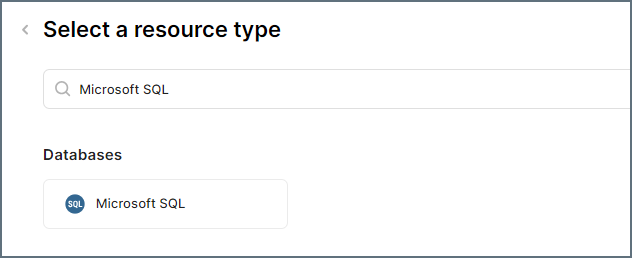
Enter the connection settings.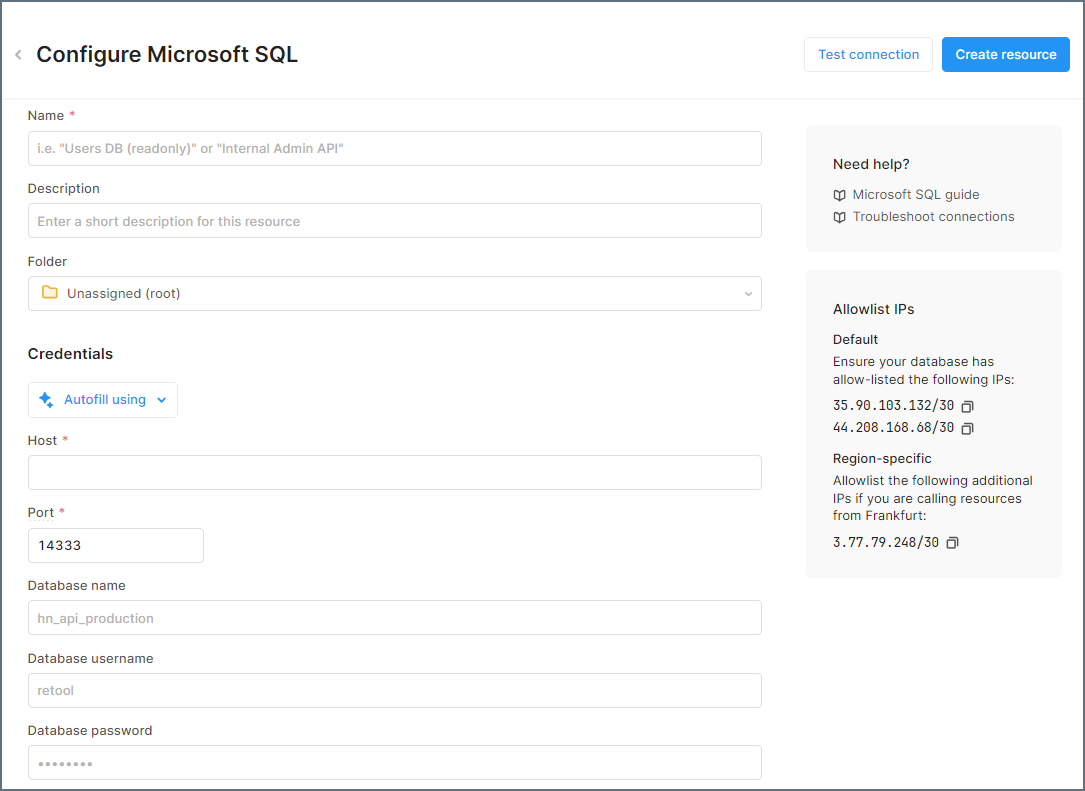
- Name—a name for the connection to Connect AI
- Host—tds.cdata.com
- Port—14333
- Database name—接続したいConnect AI データソースのConnection Name を入力します。例:Salesforce1
- Database username—Connect AI のユーザー名を入力します。ユーザー名は、Connect AI の画面の右上に表示されています。例:
test@cdata.co.jp - Database password—Settings ページで生成したPAT を入力します。