Prerequisites
Before you can configure and use ADO.NET with Connect AI, you must first connect a data source to your Connect AI account. See Sources for more information.Install the Provider
Follow these steps to download and install the provider:Download and run the ADO.NET setup file.
The installer can automatically detect software that supports ADO.NET, such as Visual Studio. Select the options that you want the installer to configure.
Connect to Connect AI
Connect AI uses OAuth to establish a connection between the ADO.NET Provider and your account. The steps below provide an example of configuring the ADO.NET Provider in Visual Studio 2022:In the Data Provider drop-down menu, select ADO.NET Provider for CData Connect 2021 and click Continue.
The Add Connection window appears. In the Auth Scheme field, select OAuth. Do not fill out other fields.
Click Test Connection.
- If you are already logged in, a success message appears.
- If you are not logged in, the Connect AI sign-in window opens in your web browser. Sign in and return to Visual Studio.
Connect to a Workspace
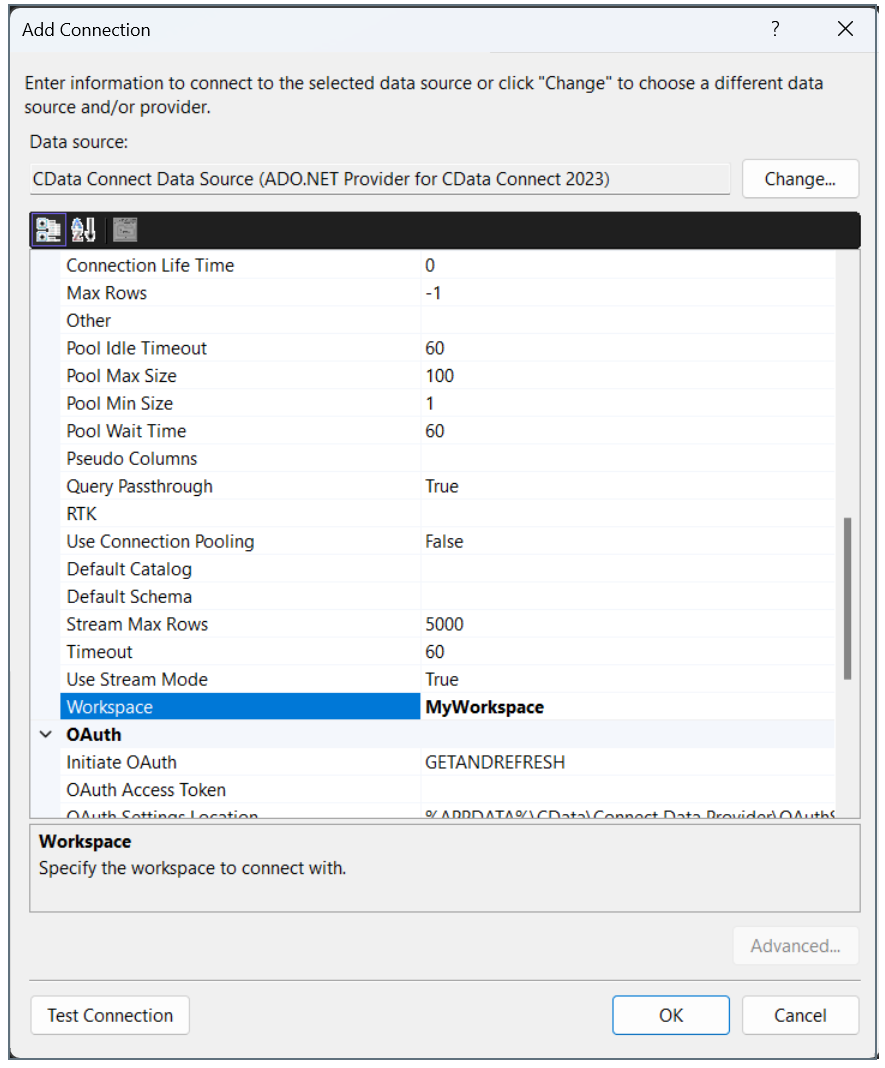
To connect the ADO client to a specific workspace, you specify the workspace name in the Workspace field of the Add Connection window.