Prerequisites
Before you can configure and use Mistral Le Chat with Connect AI, you must first connect a data source to your Connect AI account. See Sources for more information. Settings ページでPersonal Access Token(PAT)を生成します。PAT をコピーし、認証時にパスワードとして使用します。Configure the Connect AI MCP Server
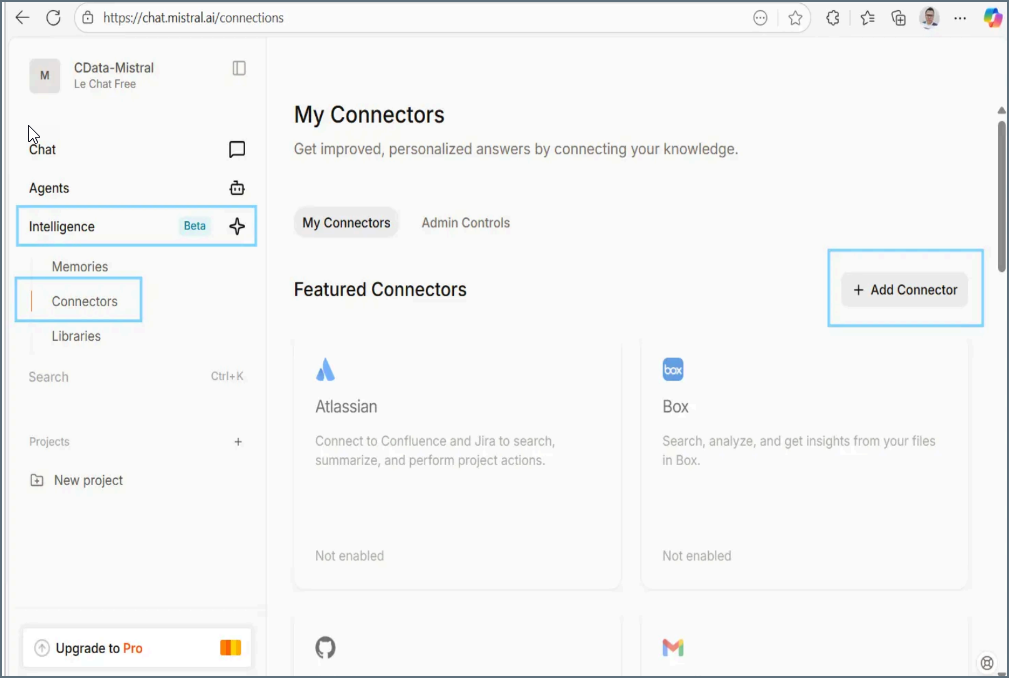
In the dialog, select Custom MCP Connector and enter the following details: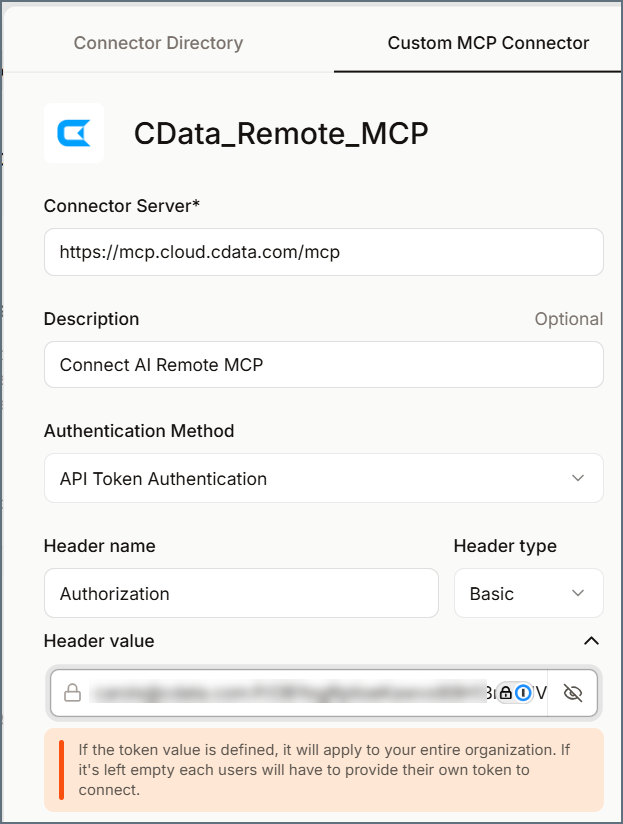
- Connector Name–enter a name for the connector, such as CData_Remote_MCP.
- Connector Server–enter the URL for the MCP server:
https://mcp.cloud.cdata.com/mcp. - Description–enter a description for the connector.
- Authentication Method–select API Token Authentication.
- Header name–enter Authorization.
- Header type–select Basic.
- Header value-enter EmailAddress:PAT, replacing Email with your Connect AI username and PAT with the PAT obtained in the prerequisites.
Scroll down to the bottom of My Connectors to view the connector you created. This step ensures that Mistral Le Chat can securely route queries through the CData Remote MCP Server to your data.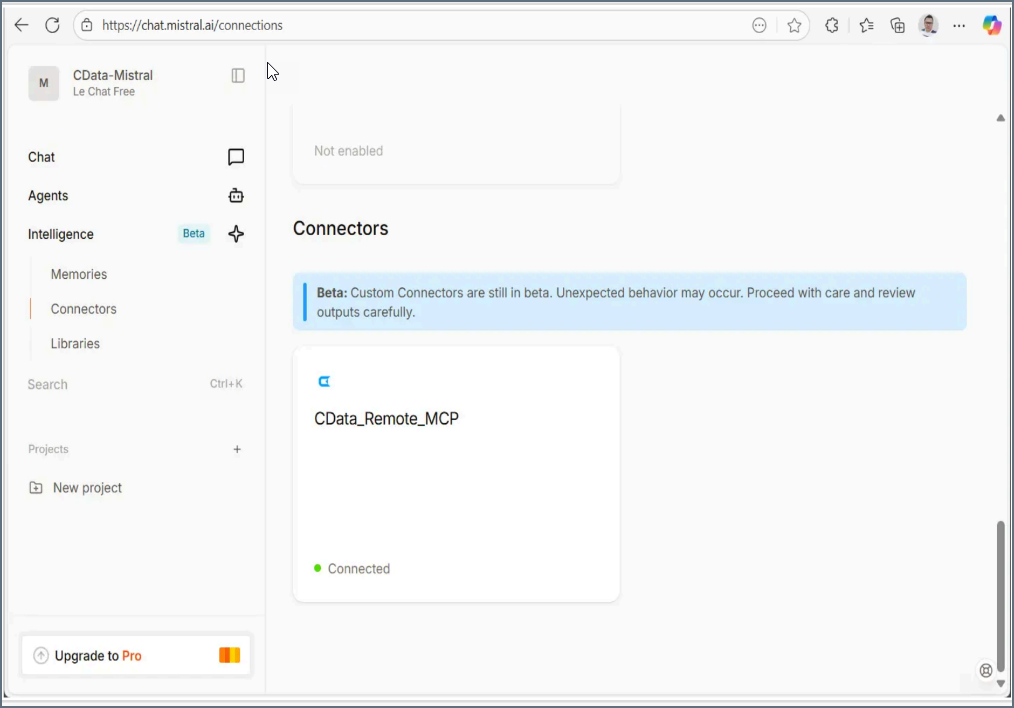
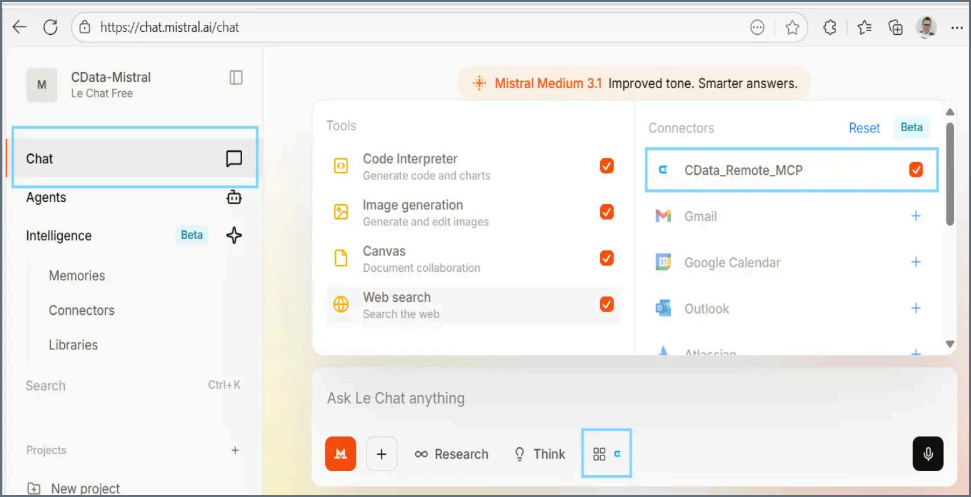
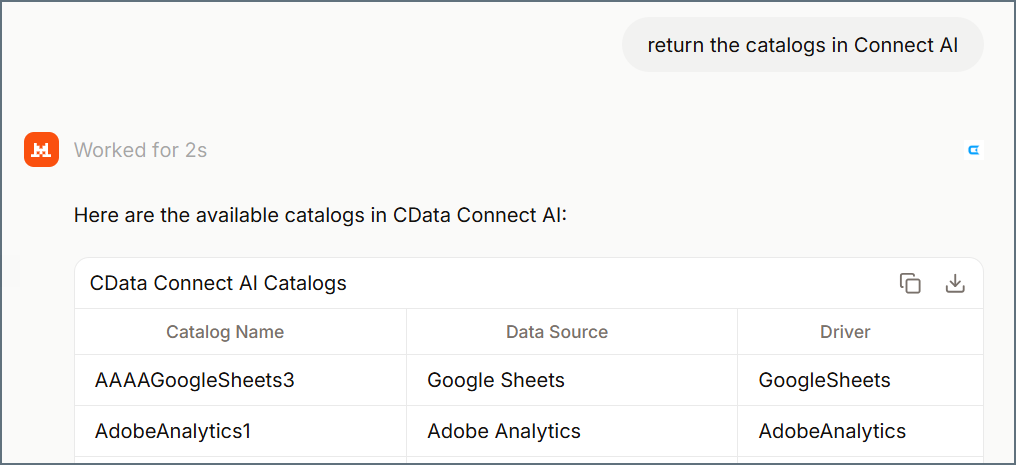
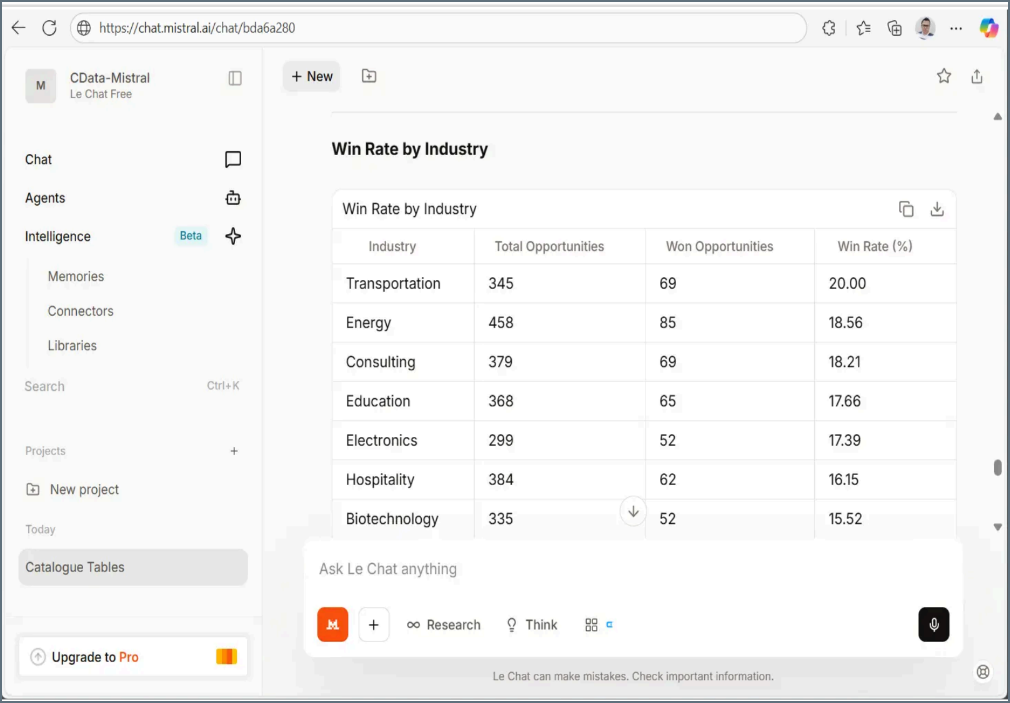
You can run a discovery query such as Get catalogs or Get tables to see the available data sources and schemas connected through Connect AI.